Bulk Assigning Transaction Requests

This task explains how agency users can bulk assign multiple transaction requests (TRs) to a participant on a supervisory activity (SA) in SES.

About this task

The EIC on a supervisory activity (SA) or a staff user from the lead agency in a multi-state examination can bulk assign transaction requests (TRs) to other participants on an SA. During an examination in SES, agency users may need to assign a large number of TRs to examiners participating in a supervisory activity. The bulk assignment feature simplifies this process by enabling users to select multiple TRs and assign them to an individual. This is especially useful for large-scale reviews or when distributing work based on examiner specialization or availability.

Procedure

  1. Navigate to your supervisory activity.
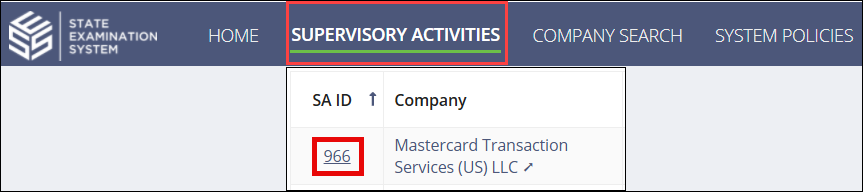
    Supervisory Activities button on the Main Menu
  2. Click Transaction Requests > Bulk Assign Transaction Requests.
  3. Select the desired Assignee.
  4. Select the desired Transaction Requests to assign.
  5. Assign the transaction requests.
    • Select Assign Transaction Requests and Assign More.
      Note: Repeat the process above to bulk assign transaction requests to another participant.
    • Select Assign Transaction Requests.