
Managing Participants for MSB OCOE Exams
How to manage your participants from your agency on MSB OCOE exams in SES.
About this task
Procedure
-
Click Exam Scheduling.
Figure 1. SES home page commands available to staff users and staff directors  1
1
-
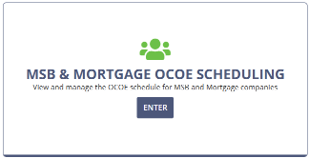
Enter the MSB & Mortgage OCOE Scheduling
workspace.
-
Select MSB.
The page changes to MSB OCOE Scheduling.
- Locate the company for which you want to set your agency's intended participation.
-
Select .
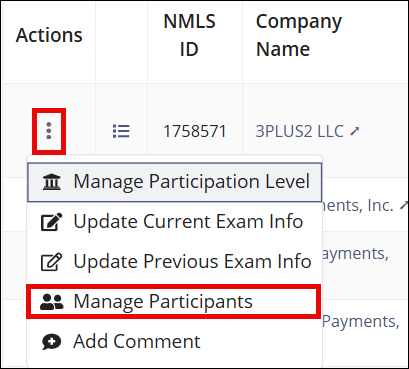
- Click Add Participant to add a member of your agency to the exam.
- Select the user's Role on the exam.
- Click the red "X" icon to remove participants.
- After adding and removing the desired participants, click Update Participants.
1 Note that Manage Complaints is only available to users
with Complaints Access permission in their user profiles. See Updating Agency User Roles