Uploading the Report
Once the report is prepared, it is ready to be uploaded to SES, with any associated documents and comments. Then it can be reviewed, and when ready, marked complete.
Before you begin
About this task
Procedure
-
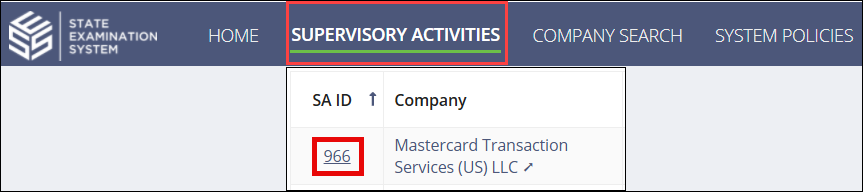
Navigate to your supervisory activity.
-
Click the Report tab.

-
Click Upload Report.

-
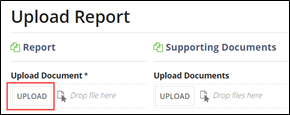
Click Upload.
- Upload any associated documents in the Supporting Documents section.
- Enter additional comments in the Comments section.
- Select an option from the Available Next Actions.
-
Click the corresponding action button.
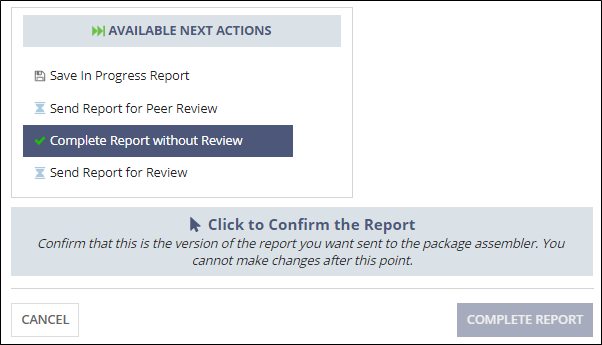 Note: If you select Complete Report without Review, you must Click to Confirm the Report because you cannot make changes after this point.
Do not mark the report complete until it is in the correct format and is the correct version ready to be sent to the company. No further changes to the report can be made if the report is marked complete.
Note:- The Peer Review workflow can include all the participants on the SA.
- The Review workflow can only include participants assigned the Reviewer role for the SA.
-
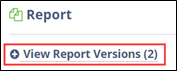
Click View Report Versions to see the available versions
of the report.
The version marked Latest will be sent to the company by the package assembler.