
Using a System-generated Report of Examination
How to use the SES system-generated report of examination (ROE) to create a draft ROE for mortgage and MSB examinations.
About this task
During the In-flight milestone of a supervisory activity, agency participants can generate a
system-generated ROE. The system generates the report using a template based on the
supervisory activity business type and populates available information from the supervisory
activity record.
- Mortgage exams reports are populated using an AARMR template.
- Money Services Business reports are populated using an MTRA template.
The generated ROE is produced as a Microsoft Word document that can be previewed or downloaded. Each time the ROE is generated, the system records the user who generated the document and the date and time of generation.
Procedure
-
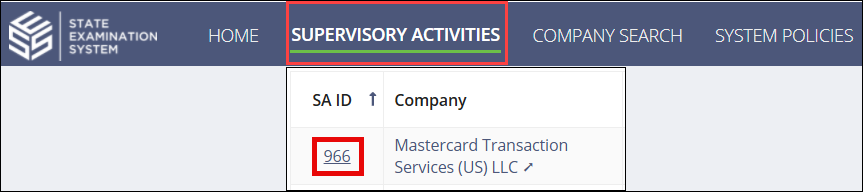
Navigate to your supervisory activity.
-
Click the Report tab.

-
Access the Report Upload area of the SA.
- If you haven't uploaded any version of the ROE yet, click Upload Report.
- If you previously uploaded earlier versions of the ROE, click Update Report.
-
Click the Generate Report button.
-
Click Save Report.
Note: The system selects the appropriate report template based on the business type associated with the supervisory activity.The system begins generating the report and you are returned to the Report Upload area of the SA.
-
Click View Report Versions.
- Optional:
If the report is not available immediately, click Refresh.

-
Select Download to save the ROE as a Microsoft Word document.
Your browser begins downloading the document.
What to do next
Note: Sections of the
downloaded ROE shown in red require your attention. These sections indicate areas
where SES could not automatically populate information from the supervisory activity and
where you must manually enter the required data.