Initiating an Enforcement Action from a Supervisory
Activity
How to initiate an enforcement action during
supervisory activity close out by choosing a disposition of "Referred to Enforcement or
Legal."
About this task
Note: Only an agency staff user or the EIC for a supervisory activity can enter close out
information.
When completing close out information for a supervisory activity, you can initiate an
enforcement action if the disposition of the examination is Referred to
Enforcement/Legal.
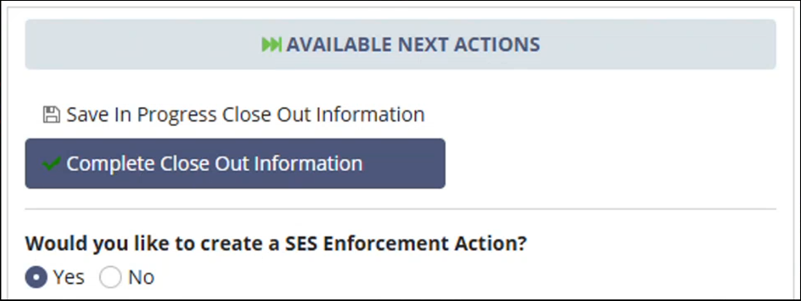
After selecting this disposition and completing the close out form, SES prompts you to
indicate whether you want to create an enforcement action. Selecting
Yes opens the enforcement action initiation process.
Procedure
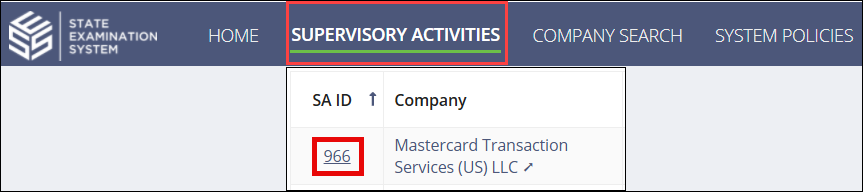
Navigate to your supervisory activity.
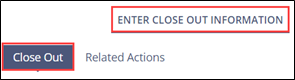
Click Close Out > Enter Close Out Information.
Select your Evaluation for each category of the
Key Data Points section.
Assign your Rating for each category of the
Ratings section.
Select the relevant response in the Consumer Refunds and
Disposition sections.
Note: If you select Referred to Enforcement/Legal, the
system presents you with the option to create an SES Enforcement Action at
the end of the form.
Click Complete Close Out Information.
Complete the Enforcement Action form, assigning a user with an SES
Enforcement Actions role in SES as the Enforcement Manager.
Results
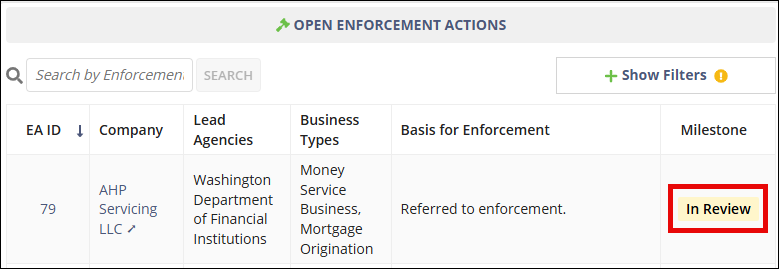
Assigned participants are sent a notification that the enforcement action was created and
it appears in the Open Enforcement Actions section in an "In Review"
status.
Agency users, please visit the Secure Portal
for phone and email contacts.
Company users should call the Call Center at 1-800-269-6189.
Agency users should not call this number.