
Entering Close Out Information
Once the report has been sent to the company, the staff user(s) or the examiner in charge (EIC) must enter relevant close out information, including evaluations, ratings, and disposition.
About this task
Note: Only an agency staff user or the EIC for a supervisory activity can enter close
out information.
Procedure
-
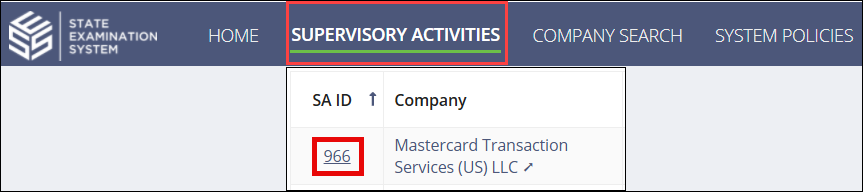
Navigate to your supervisory activity.
-
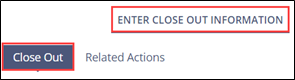
Click .
- Select your Evaluation for each category of the Key Data Points section.
- Assign your Rating for each category of the Ratings section.
-
Select the relevant response in the Consumer Refunds and
Disposition sections.
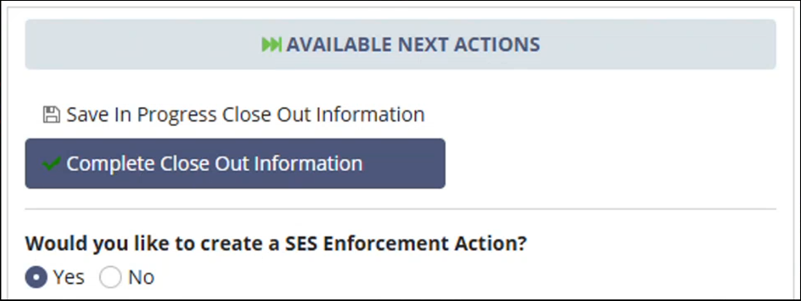
Note: If you select Referred to Enforcement/Legal, the system presents you with the option to create an SES Enforcement Action at the end of the form.

-
Enter a Next Exam Due By date.
Note: If you are conducting an investigation, you will not have the option to enter a Next Exam Due By date.
- Optional:
Enter a Statutory Requirement Date or
Risk-Based Date.
Note: If you are conducting a multi-state SA, these dates are viewable by all states participating on the SA. Only the team leads for each participating agency can update these dates for their agency.
- Upload any supporting documentation and add any comments for future exam teams.
-
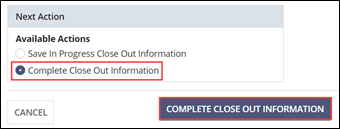
Select the Complete Close Out Information option.
-
Click Complete Close Out Information.

Results
This action along with marking the report response complete allows the staff director or staff user to close and lock the supervisory activity.