Assigning the Company Leads on a Supervisory Activity
How to assign the Company Lead and optional Secondary Company Lead on a supervisory activity (SA) in SES.
About this task
Note: The supervisory activity contact is the only user who can assign a company lead on
an SA.
Procedure
-
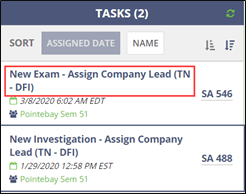
Click New Exam – Assign Company Lead on the homepage.
-
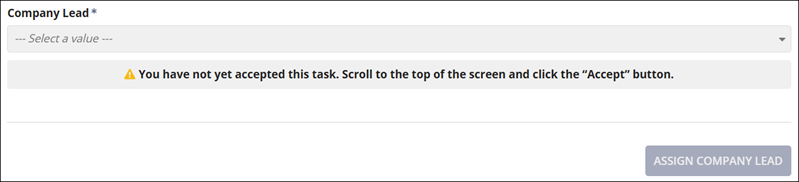
Scroll to the top of the page to accept the task of assigning a company
lead.
-
Click Accept at the top of the page.

-
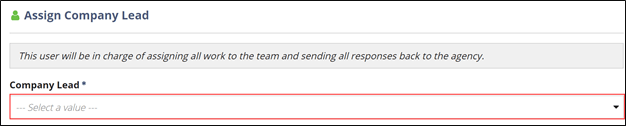
Select a company lead from the Company Lead list at the
bottom of the page.
- Optional:
Select an optional Secondary Company Lead, if
desired.
Note: The Secondary Company Lead has all the same permissions as the Company Lead on an SA, and receives all the same tasks and notifications in SES.Note: You cannot assign a Third Party User as a secondary company lead from the Assign Company Lead task. See Assigning a Third Party User as the Secondary Company Lead on a Supervisory Activity for details.
-
Click Assign Company Lead.